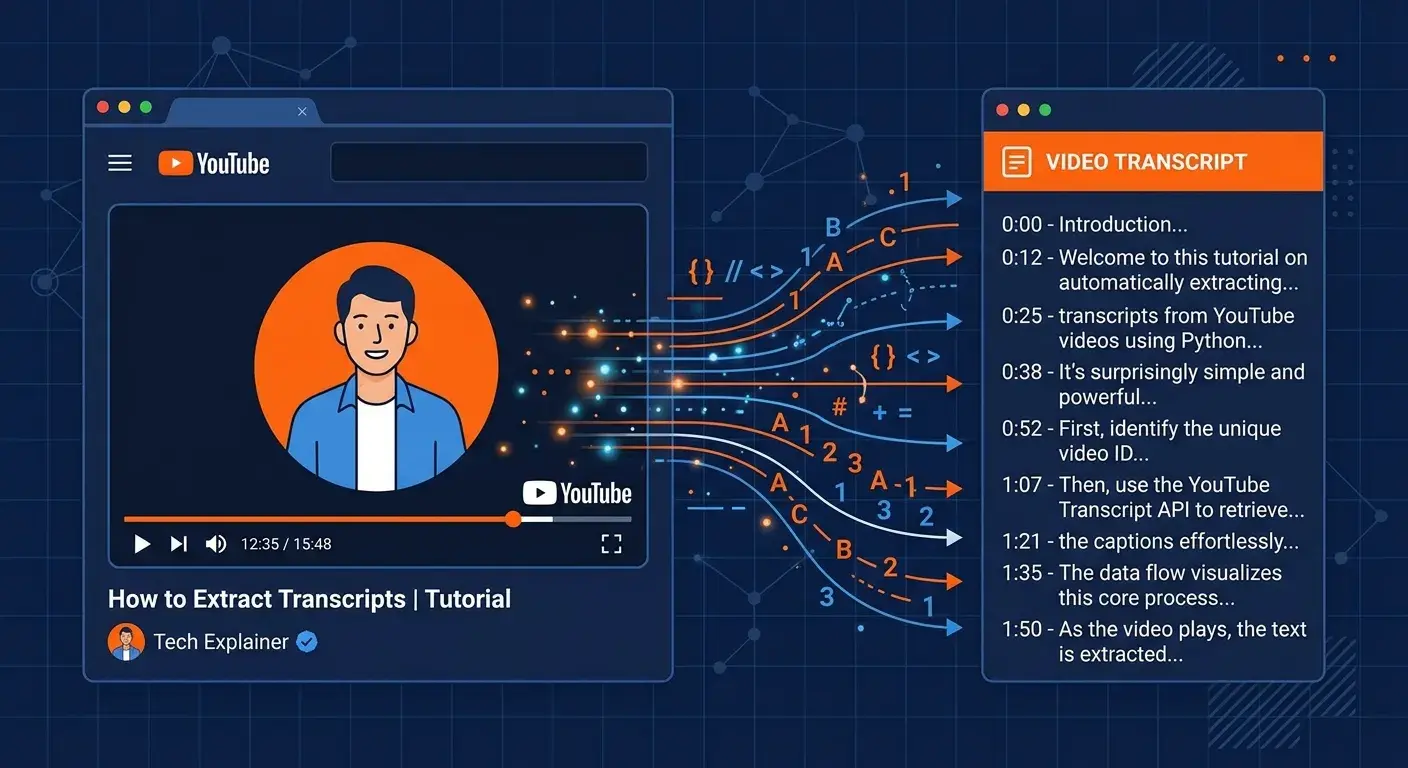
Let’s look at this from first principles rather than from the marketing page. YouTube has over 800 million videos. A significant fraction of those have captions — either manually uploaded by creators or auto-generated by Google’s speech recognition pipeline, which has processed more audio than any other system in history. That caption data is stored as structured text with timestamps. Every one of those transcripts is, functionally, a text document attached to a video — and accessing text is a fundamentally different operation than accessing video.
The conventional narrative around YouTube transcripts treats them as a minor accessibility feature. Here’s where that view is incomplete: transcripts are the interface between video content and every text-based workflow that exists — LLM analysis, search indexing, study notes, content repurposing, translation pipelines, legal documentation. The question isn’t whether you need transcripts. The question is which extraction method fits your specific constraint set.
The Native Method: What YouTube Actually Gives You
YouTube has a built-in transcript viewer that ships with every captioned video. Most users don’t know it exists. The access path: open any video, click the three-dot menu (⋮) below the player (not the one in the top-right header), and select “Show transcript.” A timestamped panel appears on the right side of the interface.
What the native viewer gives you: timestamped segments, toggle to disable timestamps, searchable text (Ctrl+F within the panel works), and auto-scroll that follows the playhead position. What it does not give you: an export button, any output format options, or a mechanism for copying the full text without manually selecting it.
The mechanism is worth understanding. YouTube stores captions in WebVTT format (Web Video Text Tracks, the W3C standard) and exposes them through a timedtext API endpoint. The native viewer renders a subset of this data. Third-party tools used to reach the same underlying data through the timedtext endpoint, but in 2026 YouTube’s anti-bot systems block that access — from cloud server IPs and from in-browser calls alike — so the native viewer is the reliable path, with the authenticated YouTube Data API as the option for videos you own.
Extraction Methods Compared: A Trade-Off Matrix
There are three meaningfully different approaches to getting transcript data out of YouTube. Your choice depends on which constraints bind.
| Method | Speed | Format Options | Batch Support | Cost |
|---|---|---|---|---|
| YouTube native viewer | Immediate | Screen only (no export) | No | Free |
| YouTube Data API v3 (own videos) | Programmatic | Any (raw data access) | Yes | Free (quota limits) |
| Third-party extractors (yt-dlp, web tools) | N/A in 2026 | SRT, VTT, plain (in theory) | — | Blocked by YouTube |
The strongest version of the “just use the native viewer” argument: it requires no tools, no installations, no accounts. If your use case is reading a transcript of a single video while watching it, the native viewer is the correct choice. Here’s where it breaks down: any workflow that needs the text as a file — pasting into a doc, feeding to an LLM, importing into a video editor — requires you to manually select and copy hundreds or thousands of lines, which is tedious and error-prone.
Step-by-Step: Get a Transcript Straight from YouTube
For the single-video case that covers most users, YouTube’s own transcript viewer is the most reliable option — and since YouTube now blocks third-party extractors, it’s also the one that actually works. Four steps:
- Open the video on desktop: A standard watch page (youtube.com/watch?v=...) shows the transcript entry point most reliably. If you’re on a Short, open it as a regular /watch?v= page — the standard player is more likely to expose the panel.
- Open “Show transcript”: Click the three-dot menu (⋮) below the player, or expand the “...more” description and scroll to the “Show transcript” link. A timestamped panel opens beside the video.
- Pick the language: If the panel shows a language dropdown, switch it to the original spoken language rather than an auto-translated track — the original caption text is higher quality.
- Read or copy: Toggle timestamps off for clean prose, then select and copy the text. YouTube offers no file export, so you build your plain-text, SRT, or VTT file from what you copy here.
If the “Show transcript” option is missing entirely, the video has no caption track — no method, native or third-party, can produce text that doesn’t exist, and your only route is a general speech-to-text service run on the audio. For TikTok or Instagram Reels, CaptionSnag extracts captions directly (caption.thicket.sh).
Format Deep Dive: When SRT vs. VTT vs. Plain Text Actually Matters
The three formats are not interchangeable, and treating them as such is a common source of downstream problems. Let’s look at what each actually contains.
SRT (SubRip Text) is the oldest and most universally supported format. Structure: sequence number, timestamp range (HH:MM:SS,mmm format), text block, blank line separator. Adobe Premiere Pro, DaVinci Resolve, Final Cut Pro, and virtually every subtitle platform accept SRT. The comma in the timestamp (00:01:23,456) is spec-compliant but sometimes causes parsing issues in non-standard implementations.
VTT (WebVTT) uses period separators in timestamps (00:01:23.456) and is the standard for the HTML5 <track> element. Use this when your destination is a web player or a modern platform that prefers W3C standards. VTT also supports styling cues and positioning data that SRT doesn’t, though YouTube’s auto-generated captions don’t include that extended data.
Plain text strips everything except the words. Use this for: pasting into documents, feeding into GPT/Claude/Gemini for summarization or Q&A, extracting quotes, or creating show notes. The trade-off is information loss — you can’t reconstruct timestamps from plain text, so if you think you might need them later, keep the SRT alongside the plain text version.
Use Cases: What People Actually Do With Transcripts
Accessibility is the canonical use case for captions, but it’s not the primary driver of transcript extraction tool usage. Here are the real-world use patterns, ordered by how technically complex they are to implement:
Study and Research
The density difference between watching and reading is significant. A 60-minute lecture at 150 words per minute generates roughly 9,000 words of transcript. That same content as text can be read in 30-45 minutes and searched, annotated, and referenced far more efficiently than video. Academic researchers regularly extract transcripts from recorded seminars, conference talks, and course content. The workflow: extract → clean in a text editor → import into note-taking system with timestamp references back to the source video.
LLM Analysis Workflows
This has become the fastest-growing transcript use case since 2024. The pattern: extract transcript, feed to a language model, ask for summarization, key point extraction, or Q&A. The limiting factor is context window size — a 2-hour podcast transcript runs 15,000-20,000 words, which fits comfortably in current models but may require chunking strategies for older or smaller models.
Content Repurposing
Creators extracting transcripts of their own videos for blog posts, newsletters, and social threads. Raw transcript quality for this use case is low — auto-generated captions lack punctuation, have speaker confusion errors, and reflect spoken cadence rather than written structure. The transcript is a starting point that requires significant editing, not a finished product. The time savings compared to transcribing from scratch are real; the expectation that you can publish a transcript directly is not.
SEO: Creating Written Content From Video
Video content is not indexed the way text content is. A 20-minute explanation of a technical concept exists for search engines only as its title, description, and any accompanying text. Extracting the transcript and restructuring it as a blog post creates a new search entry point for the same knowledge. This is a legitimate and common SEO strategy — the key constraint is that the restructured content must add genuine editing value, not just be the raw transcript with a title attached.
Translation
Text translation via DeepL, Google Translate, or an LLM is more accurate and faster than real-time audio translation. Extract the transcript, translate, then re-import as captions to the platform. For multilingual creators, this workflow produces significantly better quality translations than automated dubbing at a fraction of the cost.
Accessibility Compliance
Organizations subject to WCAG 2.1 AA compliance (which includes most government websites, educational institutions, and larger companies) must provide captions for video content and often transcripts for audio-only content. Extracting YouTube’s auto-generated captions and correcting errors is faster than manual transcription, but auto-captions alone do not satisfy accessibility requirements without human review for accuracy.
Accuracy Limits: What the Numbers Actually Say
Google’s automatic speech recognition has improved substantially since the original YouTube auto-captions launched in 2009. The current model handles most standard English well, but the accuracy distribution is wide. These are the documented accuracy ranges based on audio characteristics:
| Audio Condition | Typical Accuracy | Common Error Types |
|---|---|---|
| Clear English, studio audio | 88–93% | Proper nouns, technical terms |
| Clear English, home recording | 82–89% | Background noise, room echo |
| Non-native speaker, clear audio | 70–82% | Phoneme substitutions, idioms |
| Technical/academic content | 68–80% | Discipline-specific vocabulary |
| Fast speech or live recording | 60–75% | Word boundaries, dropped words |
| Multiple speakers, panel discussion | 55–72% | Speaker confusion, interruptions |
What would change my read on this: if Google integrates its Gemini models more deeply into the auto-caption pipeline (they’ve been doing this incrementally), the bottom accuracy tiers could improve substantially. Technical vocabulary is increasingly well-handled as language models inform the speech recognition layer. But the 88-93% ceiling for standard English is likely a fundamental limit of speech recognition accuracy rather than a model quality issue.
For Developers: Direct API Access
If your use case involves batch processing, playlist-level extraction, or integration into a larger pipeline, the YouTube Data API v3 is the right tool. The Captions resource exposes caption track metadata and download functionality. The constraint: caption downloads require OAuth 2.0 authentication from the video owner’s account. You can list available caption tracks for any video without authentication, but downloading requires the owner’s credentials.
You may still see references to the timedtext endpoint that the native transcript viewer uses, and to open-source libraries built on it (including the Python youtube-transcript-api package). Be aware that this route is no longer dependable: in 2026 YouTube blocks unauthenticated third-party access to that endpoint from cloud IPs and from browser calls, so these libraries fail intermittently or entirely.
The edge cases and limitations that matter: the timedtext endpoint is now blocked for most automated access; age-restricted videos require authenticated sessions; some creator-uploaded caption tracks are marked private and unavailable; and YouTube changes its interface and anti-bot defenses periodically, which breaks tools that rely on scraping rather than the authenticated Data API.
The Framework: Choosing Your Method
There are three ways to think about transcript extraction, and your choice depends on which trade-off you can live with:
Single video, human workflow: Use YouTube’s native transcript viewer — open the video, three-dot menu, “Show transcript.” It’s free, needs no installation, and (unlike third-party YouTube extractors, which YouTube now blocks) it reliably works. Toggle off timestamps and copy the text you need. Working with TikTok or Instagram Reels instead? CaptionSnag extracts those captions directly.
Multiple videos or automation: The authenticated YouTube Data API is the route that still holds up, and only for videos you own or have been granted access to. Tools like yt-dlp that scraped public captions without authentication have become unreliable now that YouTube blocks that access — don’t build a pipeline on them expecting consistent results.
Production pipeline: YouTube Data API v3 with proper OAuth, quota management, and error handling. Build in retry logic for quota exhaustion; the default quota of 10,000 units per day is consumed at 50 units per captions.download call, giving you 200 downloads before hitting the limit.